HIERARCHY CONTROL STRATEGY
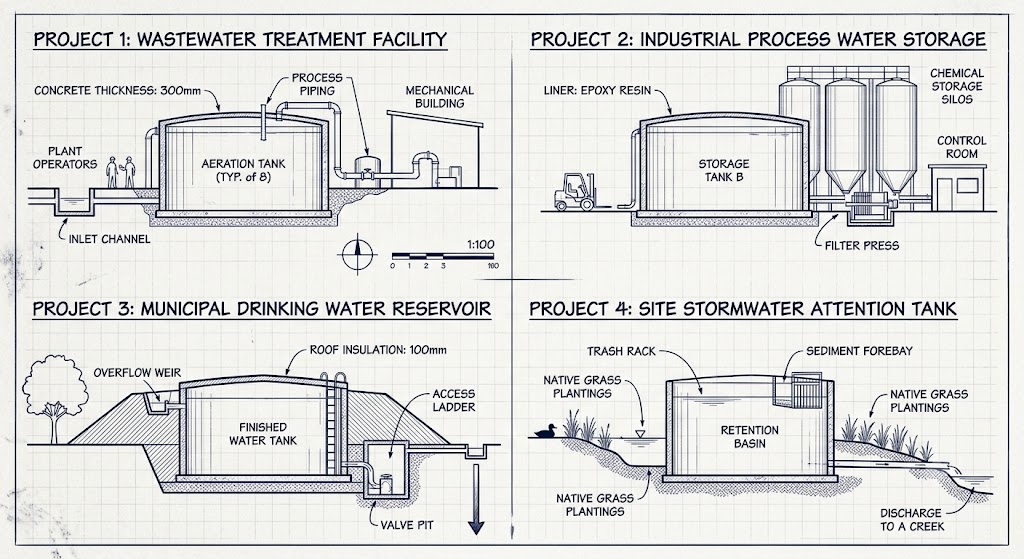
The purpose of this post is to explain a strategy where by Revit Template File settings can used to achieve standardised drawing outputs. There is an overarching mental framework to this strategy that is summed up with the phrase “same element, different project” . When the same type of object is used on different projects, it’s appearance can be standardised.
So for Wastewater projects which involve a lot of pipework with similar functions, or lots of concrete elements that are either precast or insitu then their appearance can be standardised from project to project.
The method used to standardise element appearance can be built directly into the Revit Template file settings to help push this appraoch across a company.
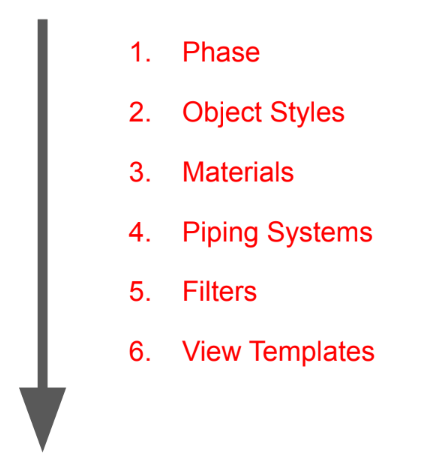
The below image shows the hierarchy of controls to be preconfigured into a Revit Template file to standardise the appearance of elements across projects.
- Phases
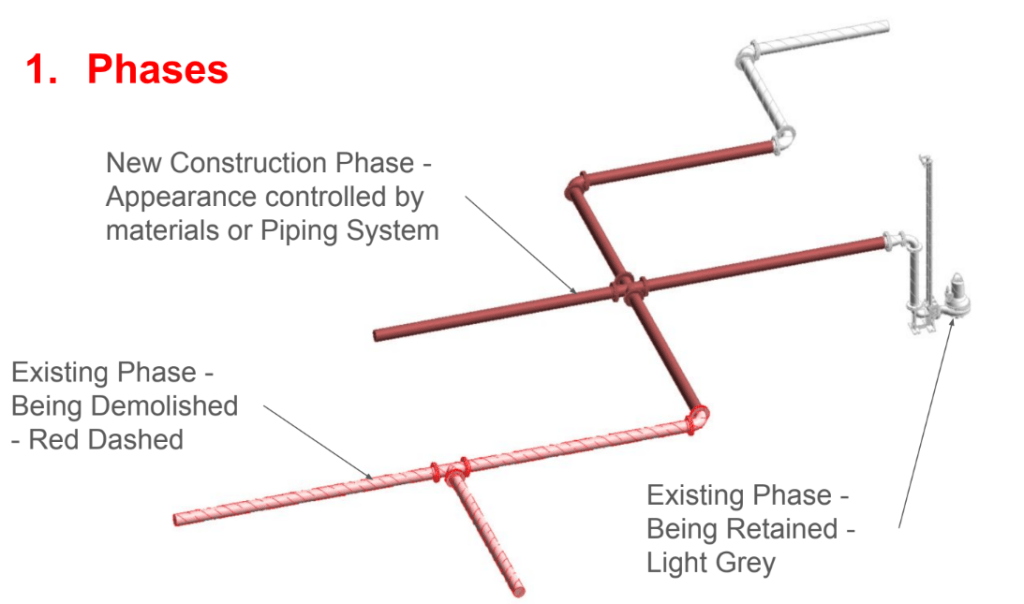
Objects in Revit have a location in time as well as space. When working with projects on sites with existing features, we can utilise the Revit Element Phase to control the appearance of those objects. This is at the top of the Element Appearance Control Hierarchy because it is most important to understanding the scope of a project.
In the image below you can see how the Phase of an element can be used to control it’s appearance on a drawing.
2. Object Styles
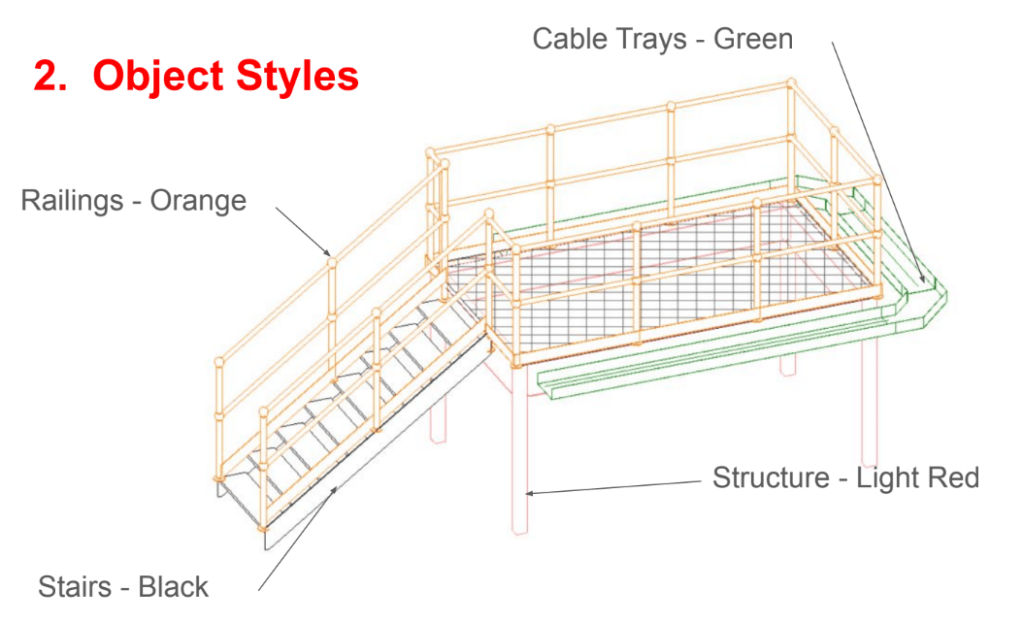
Revit elements have a category. Floors are floor category, railings are railings category so on and so forth. The Revit Object Styles settings can be used to give a standard appearance to these elements across projects.
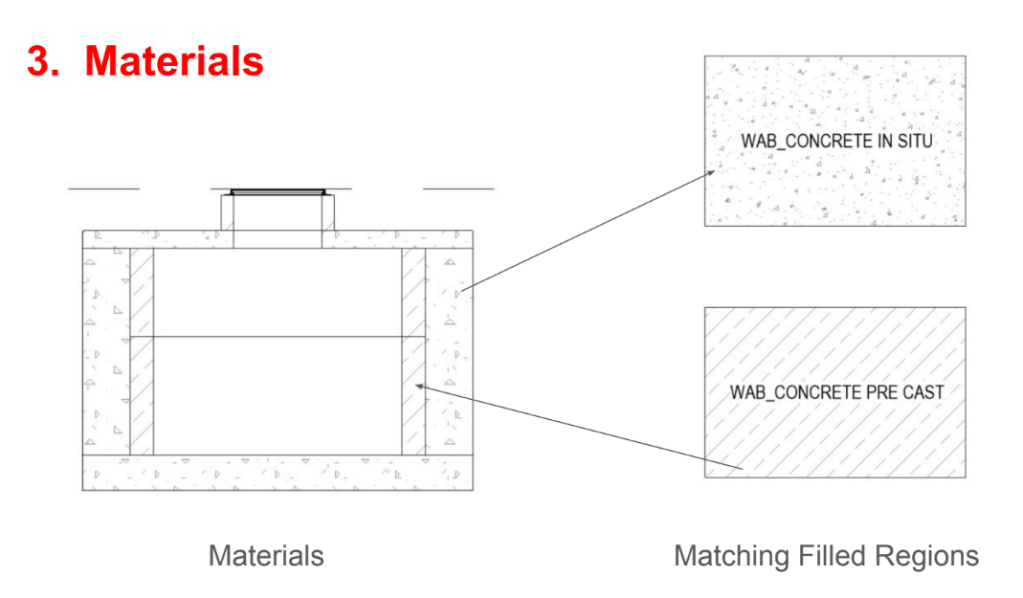
3. Materials
Elements that are made of the same materials should always display the same, to make drawings more quickly understandable.
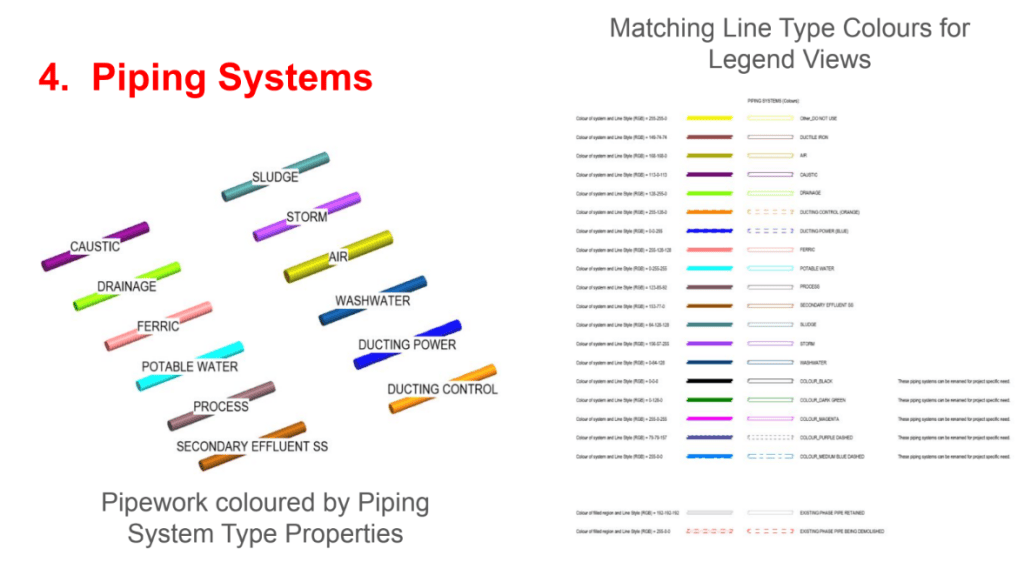
4. Piping Systems
When the function of a pipework is the same across projects then it should display the same across different drawings.
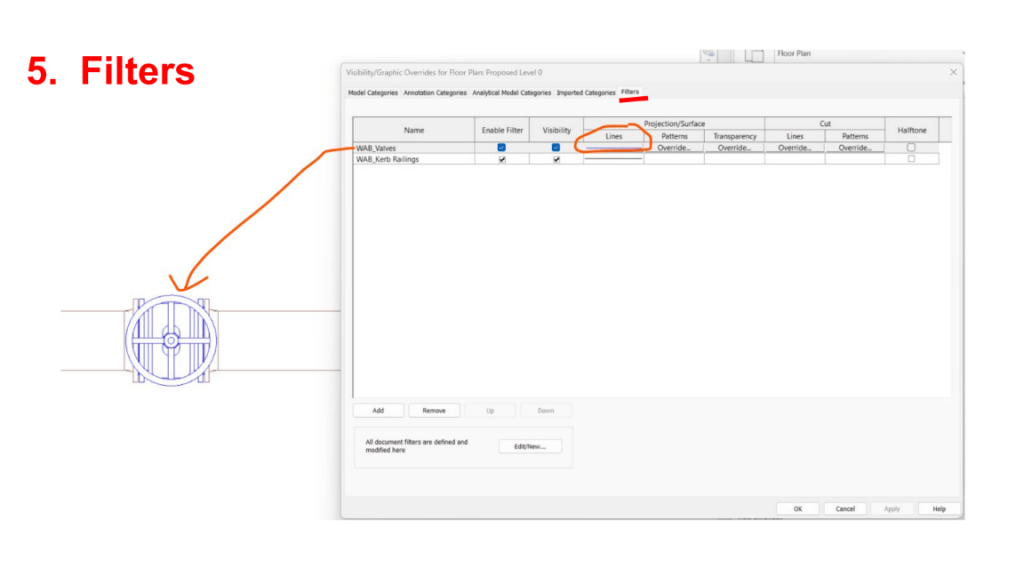
5. Filters
Filters applied to views in Revit are very powerful and can set the appearance of elements with a great amount of control. However they are combuersome to use and set up. They can require a lot of working time and should only be used for a limited number of situations to avoid slowing work down.
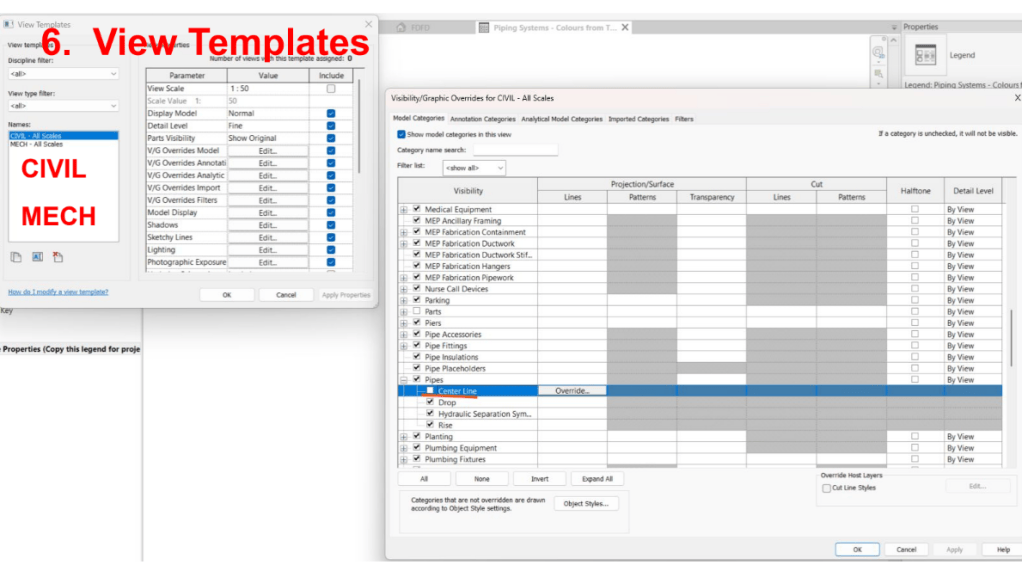
6. View Templates
View Templates can help a lot when projects require many standardised views of similar objects. If used correctly they can help save time on projects. But when used incorrectly or overused they can slow projects down considerably.
Conclusion
Using a hierarchy system of element appearance control preconfigured into the Revit Template can be a very robust way to standardise drawing output for a CAD/BIM Team.
I hope you found this informative, feel free to reach out if you have more questions.

