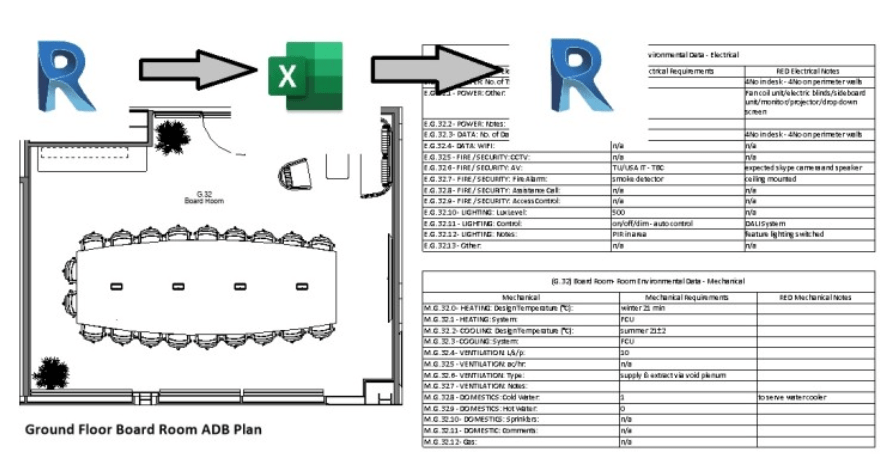
On most projects the design team is made up of ourselves the Architects and other consultants such as M&E Engineers and Structural Engineers. We work in a collaborative way with these other consultants to deliver the design. This involves a lot of sharing of information. Often this is native models or IFCs but sometimes it is DWGs, PDFs and Excel files. In this article I will explain one method we have developed to streamline data communication between our Revit model and other consultants’ information using Dynamo and Excel.
When we create room data sheets, we include schedules containing information about the M&E services supplying the room. This process previously involved sifting through the M&E consultants unique information delivery including drawings, emails and bespoke Excel files to find the relevant information. This method was error prone and involved more back and forth communication between GS Arch and the M&E Engineer. It was also slow and required lots of data inputting work.
This is why, we looked to Dynamo for assistance. In the new process which I will describe below, errors have been completely eliminated and time consuming data inputting is minimised.
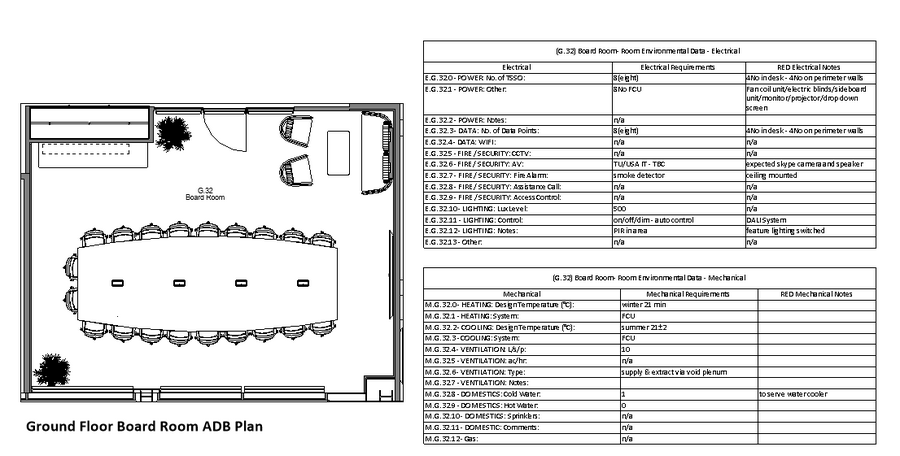
On our room data sheets we have one schedule for the mechanical systems servicing the room and another schedule for the electrical services.
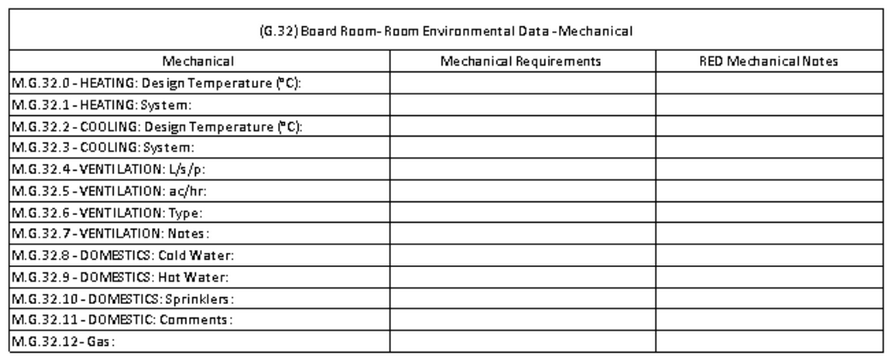
The first step of this improved workflow is to create Excel files of our Room Data Schedules. In many projects we have room data sheets for many rooms and so exporting the schedules for each sheet would be very time consuming. This is why we have created a Dynamo script to do exactly that. This script required a node from the Spring Nodes package to work so I would just like to say thanks the creator of that package first. Below is a screenshot of the Dynamo canvas of the script that exports multiple schedules in one go.
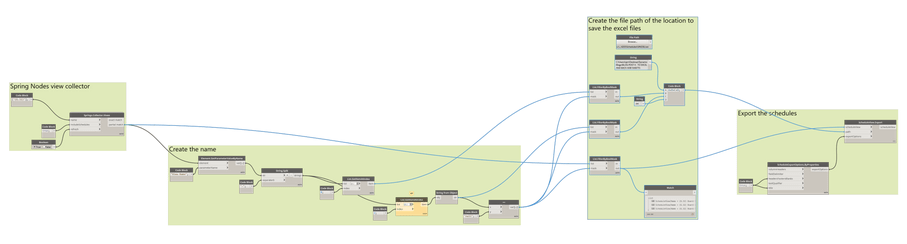
This script exports the schedules as ‘Delimited Text’ files. These can be opened in Excel. They are sent to Engineer and the required information is inputted by them. This would speed up the process anyway but there is one last trick and that is collecting the data the engineer has inputted in Excel and importing it back to the Revit project. This is accomplished with the script seen below.

The result of this process is that we have successfully captured the engineer’s data for the services for each room and we have inputted it to our project without errors and without time consuming manual data inputting. This is just one of the ways we are using Dynamo speed up and increase accuracy of our workflows.
 SJM Studio Leeds