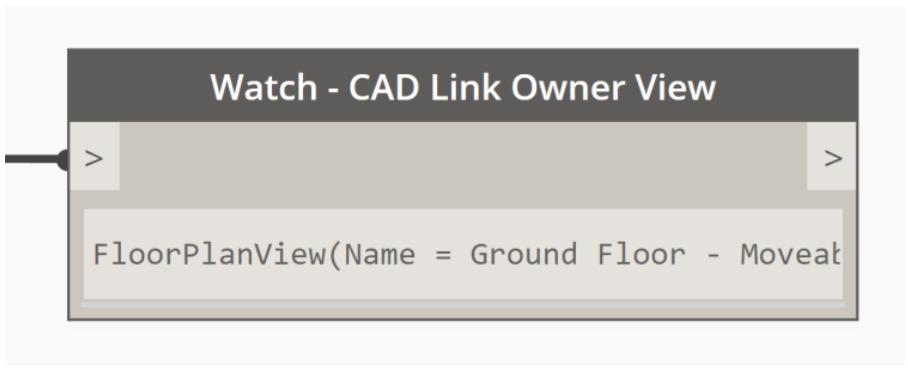
On larger projects we often need to link multiple CAD drawings into the model. In Revit when you link CAD you can choose to link into a single view or the entire model. It is advisable for most workflows to link the CAD into a single view. However this does create the problem that some links can become misplaced. I have created a Dynamo script to track them down.
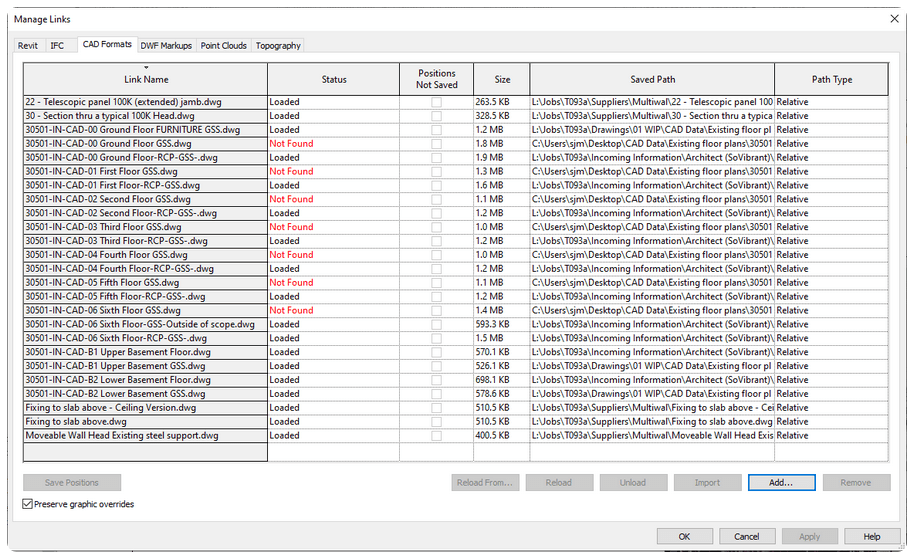
Here is a typical list of the number of CAD links in a project. Maybe it wasn’t you but in fact a colleague who imported the CAD. How would you know which view they linked it into. A typical Revit project can have many hundreds of separate views it wouldn’t be possible to search through them manually. This is why, I thought Dynamo seemed like the best way to solve this problem.
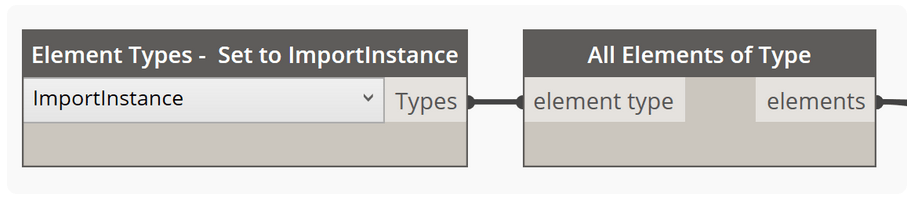
The first step is to collect the CAD links in the project. That is accomplished by these two nodes in Dynamo.
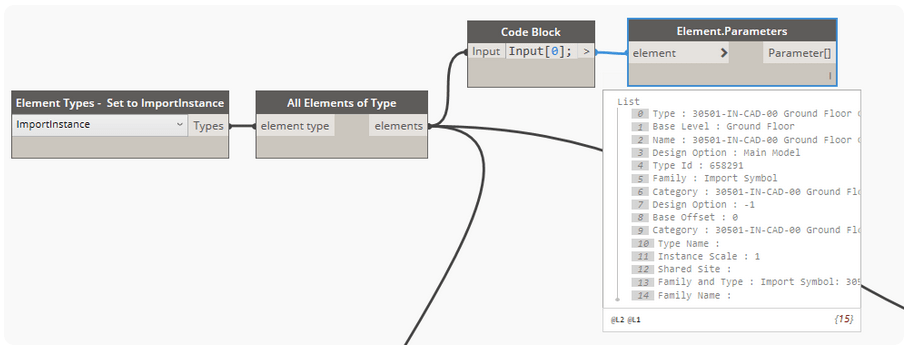
What would be great is if the view the CAD was linked into was stored as a parameter of the CAD instance. However, as we can see from this screenshot below that this is sadly not the case. The makers of Dynamo have a I think missed this out when they decided which parameters should be included in a Dynamo ImportInstance element parameters.
So what can we do? In cases like this we need to look at what help the Revit API can provide. In some situations there are methods (actions) and attributes (parameters) made accessible to us via the Revit API. The first stop is the website https://www.revitapidocs.com/ where we can search various terms to find classes in the API that might be of use.

I simply started by typing CAD into the search box and the first suggestion is CADLinkType Class. A Class is an Object Oriented Programming term which is similar in general language meaning to a group of methods and attributes. All elements in a class have the same methods and attributes. I selected this option from the suggestions and it took me to this part of the website.
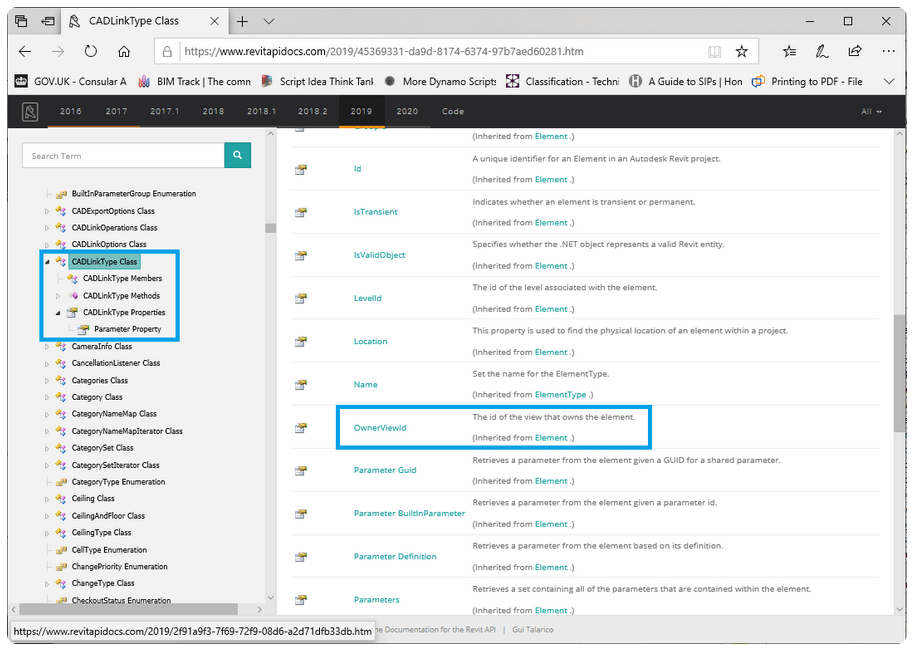
One of the properties (attributes /parameters) of an element the CAD link class is the OwnerViewId. This means if we get the OwnerViewId of the ImportInstance we know which view it was originally loaded into. To do that we need the following bit of python script.
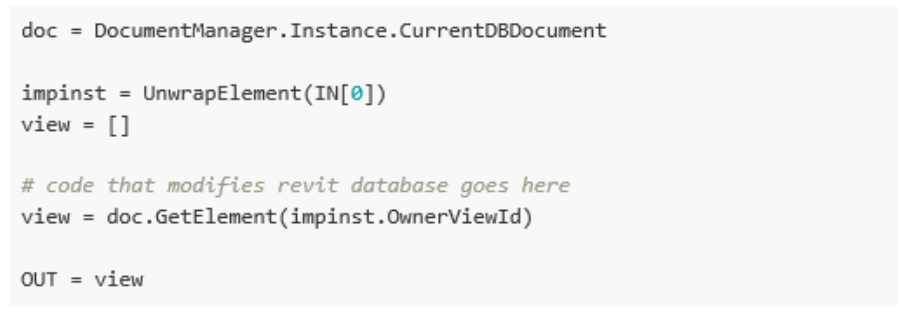
This python script takes only one Import Instance has an input. It doesn’t contain a for loop to cycle through a list of import instances and so we need to feed into it the correct import instance we wish to find out the owner view for. Which is shown in the snapshot of the Dynamo canvas below.
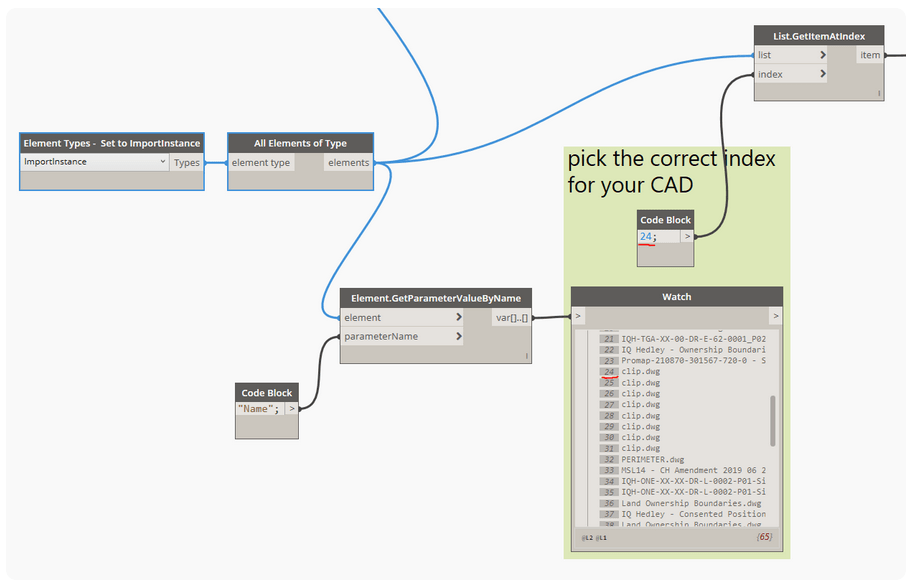
I was interested in the CAD called clip.dwg which was at index number 24 so I used a ‘Get Item at Index’ node to select the ImportInstance at index 24.
I then need to feed this ImportInstance into the Python node and watch what comes out.
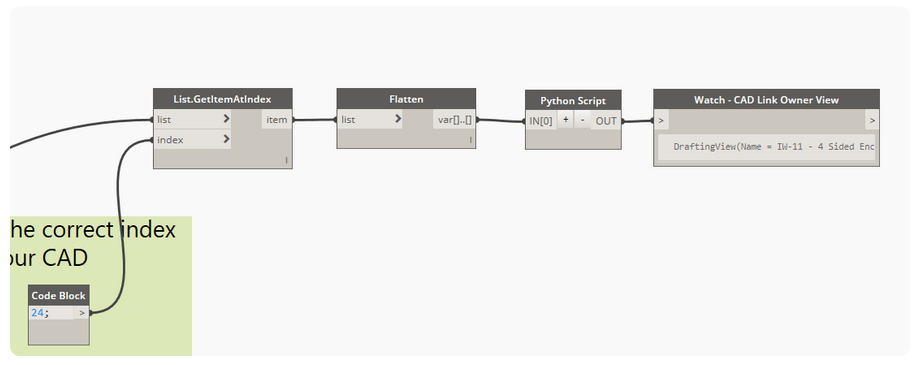
Here is a link to the Dynamo forum where this script can be downloaded.
https://forum.dynamobim.com/t/find-cad-link-referencing-view/7204/7
 SJM Studio Leeds