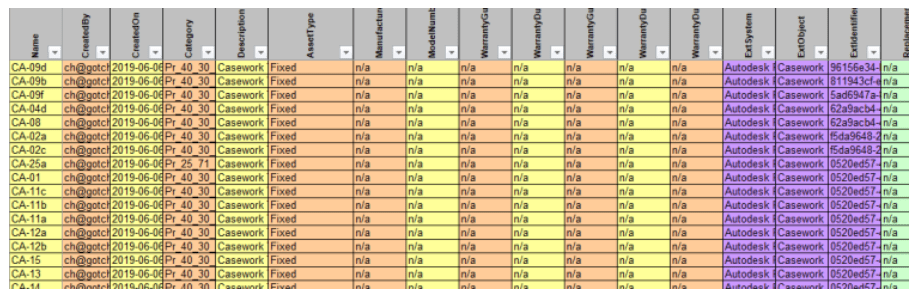
In this article I describe how we at GSS Architecture are using Dynamo to help speed up the production of COBie data. I will start this article where we started to solve this problem with a diagram of the COBie sections. In this diagram I listed the sections of COBie data schedule that we as Architects need to complete on projects.
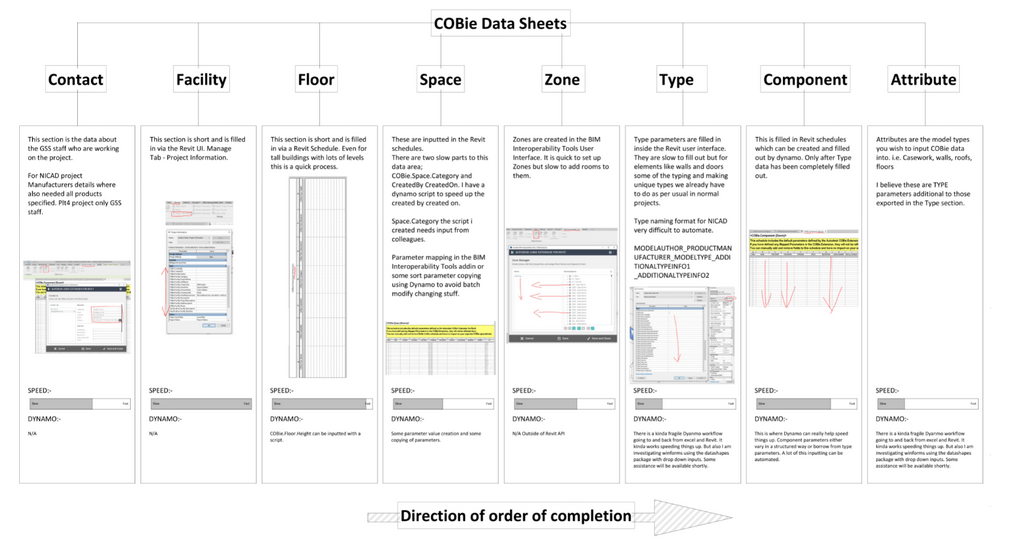
At the bottom of each section I created a progress bar graphic that shows how slow each section is to complete. We used this as a guide to know where to focus our Dynamo automation efforts. I also arranged the COBie sections in order from left to right in the direction they should be completed. Obviously completing COBie data is an iterative process and so some sections are repeated throughout the project life.

The first 2 sections COBie.Contact and COBie.Facility are relatively quick and easy to complete and so don’t require any Dynamo assistance.
The first section where we looked to use Dynamo was COBie.Floor parameters. Rather confusingly COBie.Floors are Revit Levels. In this video I show the script I produced for automatically completing all the COBie.Floor parameters in one go. https://vimeo.com/379218139 In this video I interact with the script in Dynamo not Dynamo Player so that you are able to see the length of the script. All the scripts produced for automating COBie are of roughly the same length and so even when they are making changes to many elements in the Revit model they are still quite quick to run.
COBie.Space parameters can be partially automated with Dynamo but for projects with large numbers of rooms COBie.Space.Category can be a slow process to input. I tried to automate or at least speed this up with Dynamo. This video shows a method uses the DataShapes package that is effective with a medium or small sized building. https://vimeo.com/377513972
COBie.Zone parameters exist in Revit extensible storage and can only be set using the BIM Interoperability Tools plug-in.
COBie.Type parameters are completed using a mix of Dynamo scripts and manual input.
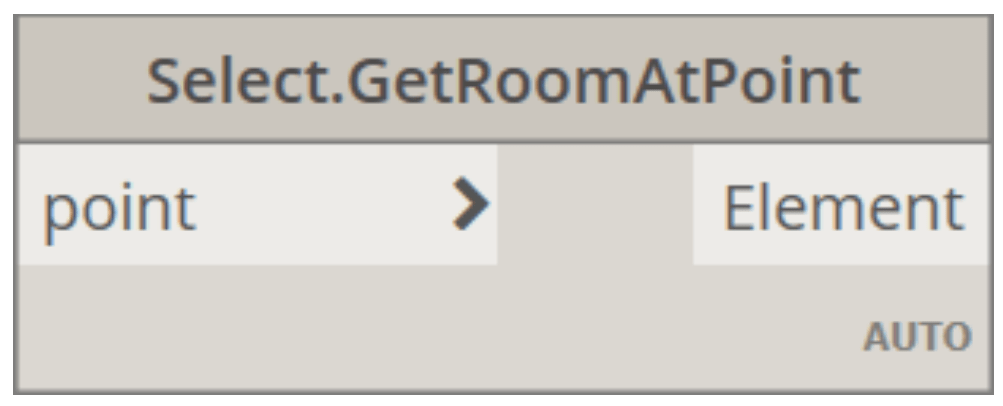
COBie.Component parameters can be inherited from COBie.Type parameters, also unchecking Itemise every instance in schedules can be a great help. One of the slower parts of COBie.Component parameter inputting is the COBie.Component.Space parameter. This is the name/number of the room the object is found in. I was only able to automate this due to a node in Archi-lab package made by Konrad Sobon called get room at point. This video shows how we can input this parameter for ceilings. https://vimeo.com/350102453
We have not yet been asked to include Attributes in a COBie submission. They are dependent partly on having an ordered and detailed Revit model.
At the end of this task we had created 28 Dynamo scripts to help fill out various sections of the COBie data. We also produced a supporting PDF guide document to explain how and when to use the Dynamo scripts. The method we are using to deploy the scripts is via Dynamo player. I have included an image below of the scripts inside of Dynamo player.

The PDF guide document was produced to explain how to run each of the scripts and what data needs to be manually inputted to be able compliment Dynamo automation process. I have included an image of a selection of pages in the guide.

A key thing we learnt along the way is that COBie.Component data should be inputted at the end of the process and in the case of many component parameters they can inherit their values from COBie.Type parameters, which should be inputted before.
We would also like to offer this advice to those drafting a COBie offer, they should think carefully about COBie.Component.Name and COBie.Type.Name requirements. The choice here is between a name that is purely unique which is the sole requirement of COBie and names that have greater detail about the object. Once you move away from a purely unique name then you add to the data inputting load and there is less ability to automate some of this using Dynamo.
#COBie #DynamoBIM #Dynamo #Revit
 SJM Studio Leeds